
How to Create an Assignment Tracker in Google Sheets
Organizational
Productivity
Tools
College Tips
Assignment Tracker
Jan 21, 2026
If you’ve ever opened Google Sheets thinking you’d finally get organized, only to abandon the tracker two weeks later, you’re not alone. Most students start the semester with good intentions, but keeping track of assignments across multiple classes quickly becomes overwhelming. That’s why many students turn to an assignment tracker in Google Sheets as a starting point.
Why You Need an Assignment Tracker
Managing academic responsibilities can quickly become overwhelming without proper organization. Creating an assignment tracker in Google Sheets isn't just helpful, it's essential for academic success in today's demanding educational environment.
Helps manage deadlines and priorities
Effective task management goes beyond simply listing what needs to be done. An assignment tracker google sheets helps you break down larger responsibilities into smaller, manageable steps, significantly reducing feelings of overwhelm [1]. With a well-structured assignment tracker template, you can balance competing demands from various classes, extracurricular activities, and personal obligations [1].
Furthermore, these tools enable you to set clear priorities based on urgency and importance. Students can quickly assess their workload and focus on critical tasks first [2]. This structured approach to prioritization ensures you allocate your time wisely, creating a better balance between academic, personal, and social activities [1].
Reduces stress and missed assignments
The impact of organized tracking on academic performance is significant. Many students find that using an assignment tracker helps reduce missed deadlines and improve consistency. Moreover, those adopting structured college assignment trackers report 73% fewer all-nighters before deadlines [3].
Having a comprehensive view of your semester helps prevent the anxiety that stems from uncertainty or forgotten deadlines. Academic stress often originates from feeling overwhelmed by an unorganized workload [2]. Consequently, creating an assignment tracker spreadsheet provides the mental clarity needed to approach your studies with confidence rather than apprehension.
Missing assignments can substantially impact your academic standing, with data showing a 15% average GPA drop from missed submissions [3]. A free assignment tracker Google Sheets template prevents these costly oversights.
Keeps all tasks in one place
Perhaps the most practical benefit is consolidation. When your assignments are scattered across different notebooks, emails, and sticky notes, you lose approximately 4.3 hours weekly simply switching between tasks and trying to recall deadlines [3].
A Google Sheets assignment tracker serves as your centralized command center where you can:
Visualize your entire semester at a glance
Break down complex projects into manageable tasks
Track progress consistently across all courses
Identify overlapping deadlines before they become problematic
In fact, students who consolidate their tasks into one streamlined system report a 0.8 average GPA increase through priority-based scheduling [3]. This improvement stems from never missing a crucial deadline and maintaining consistent progress across all courses.
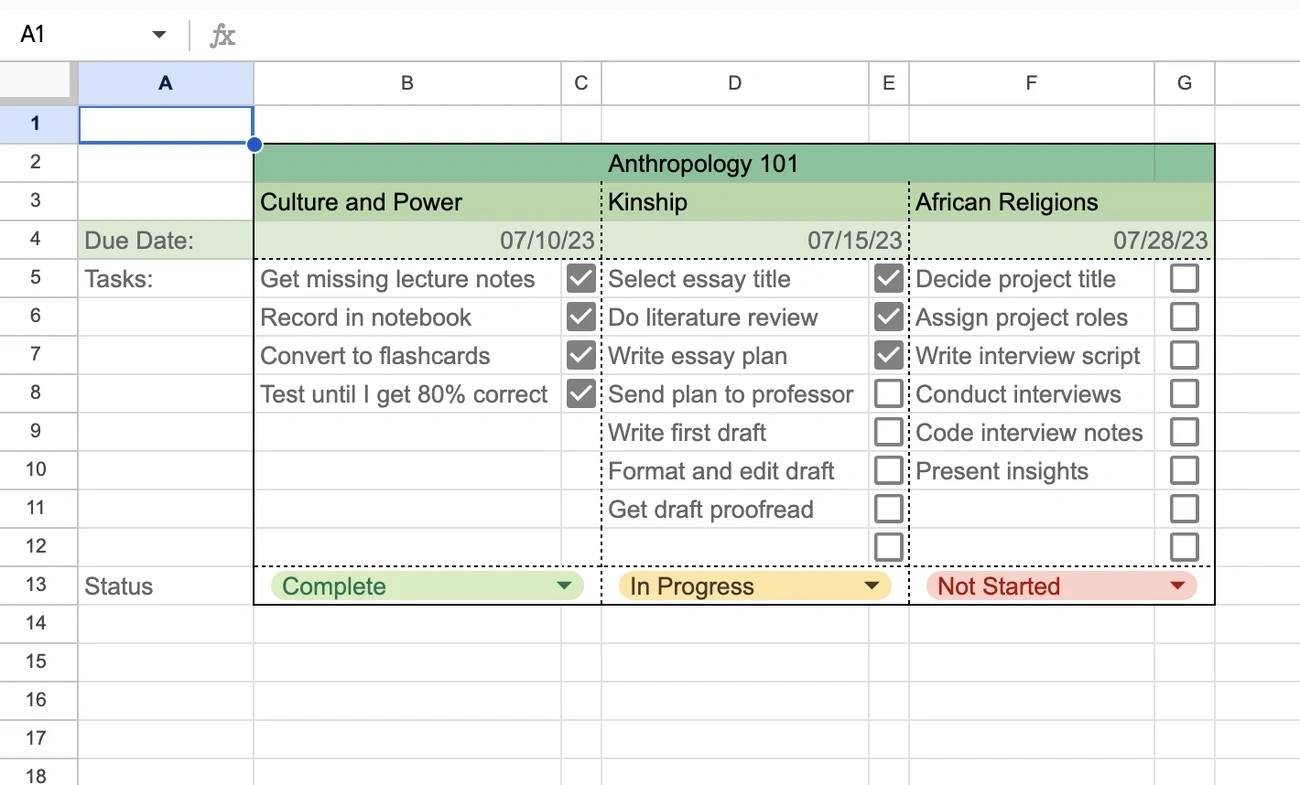
How to Make an Assignment Tracker in Google Sheets
Image Source: Proofed
Creating your own assignment tracker in Google Sheets takes time, but can save you hours of stress throughout the semester. With a few simple steps, you'll have a customized tool that fits your specific needs and study habits.
1. Open a new Google Sheets document
Initially, navigate to sheets.new in your browser or go to Google Drive, click "New," and select "Google Sheets." Name your spreadsheet something memorable like "Spring 2026 Assignment Tracker" to easily find it later. This clean slate will become your organizational hub for the entire term.
2. Create columns for task name, due date, status, and notes
The foundation of any effective assignment tracker template includes several essential columns. At minimum, set up these core fields:
Assignment Name: For clear task descriptions
Due Date: To track deadlines
Course/Subject: To categorize by class
Status: To monitor progress
Priority: To help with task management
Notes: For additional information
You can add columns by highlighting adjacent columns, then selecting "Insert" from the menu and choosing "Column left" or "Column right." Alternatively, use keyboard shortcuts like Ctrl+Alt+Shift+= (Windows) or Command+Shift+= (Mac) to speed up the process.
3. Use data validation for dropdowns or checkboxes
Data validation creates consistency and saves typing time. To add dropdown menus:
Select the cells in your Status column
Click "Data" then "Data validation"
Choose "List of items" under criteria
Enter options like "Not Started, In Progress, Completed"
Optionally, assign colors to each option
For subjects, create a similar dropdown with your course names. This structured approach ensures you can easily sort and filter tasks later.
4. Apply conditional formatting for visual cues
Conditional formatting transforms your assignment tracker spreadsheet into a visual dashboard. To highlight approaching deadlines:
Select your date column
Click Format > Conditional formatting
Choose "Date is before" and set "Tomorrow"
Select a red background color
You can also create a rule that strikes through and turns completed assignments green by selecting your data range and using a custom formula like =$D2="Completed" (where D is your status column).
5. Add formulas to track overdue tasks
Ultimately, add a "Days Left" column with this formula: =IF(D2="Completed", "", MAX(0, C2-TODAY()))
This automatically calculates remaining days until each deadline (C2 represents your due date column). The MAX function prevents negative numbers for overdue items, while the IF statement clears the countdown once you mark a task complete.
For students juggling multiple courses, these tracking features provide the structure needed to manage competing priorities effectively.
Ways to Customize Your Assignment Tracker Template
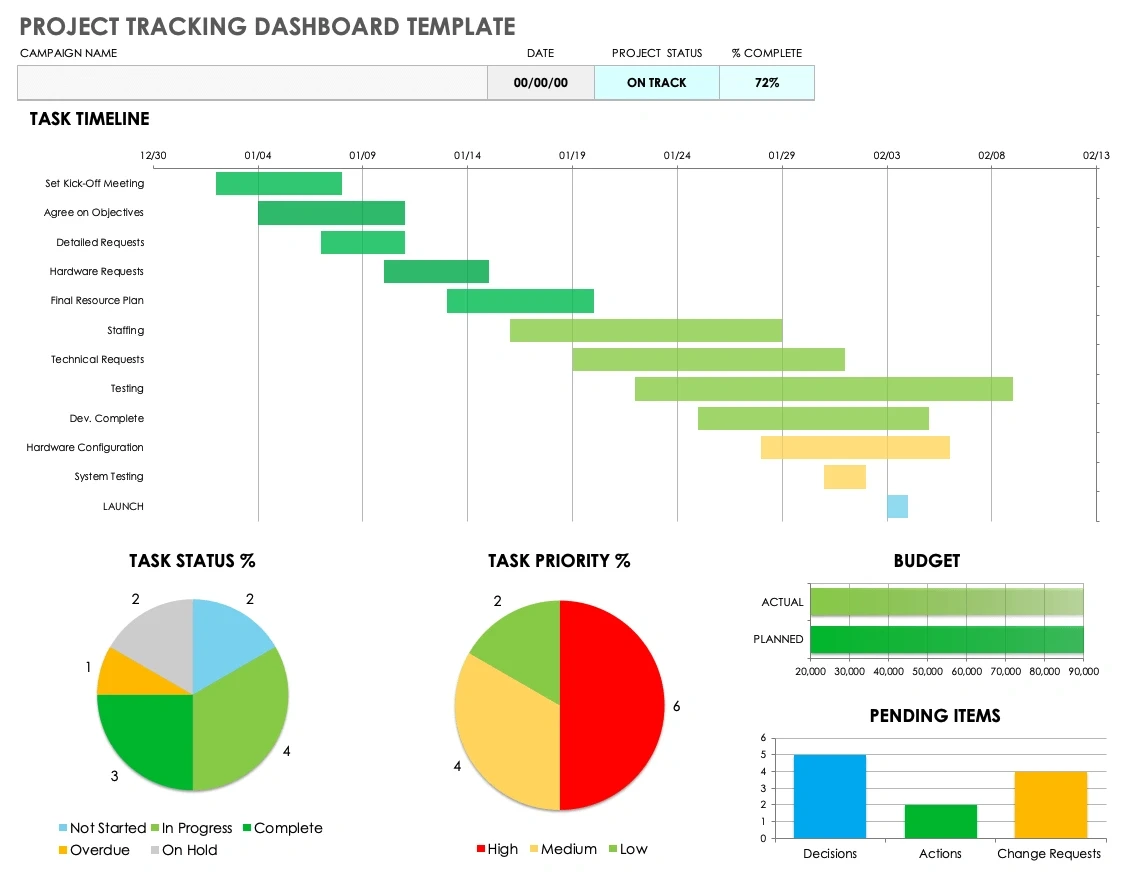
Image Source: Smartsheet
Once your basic assignment tracker template is set up, personalizing it makes tracking assignments more intuitive and effective.
Color-code by subject or priority
Transform your assignment tracker Google Sheets into a visual dashboard by assigning specific colors to each subject or priority level. Select your subject headers and apply distinct colors, perhaps blue for math, green for science, and orange for English. This immediate visual cue helps you identify task categories at a glance [4]. For priorities, create a simple color system: red for urgent, yellow for important, and green for routine tasks.
Use filters to sort by due date or status
Filters allow you to focus on exactly what matters right now:
Select Row 1 (your header row)
Click Data > Create a filter
Use the filter icons in each column header to sort or search [5]
Subsequently, you can view only "In Progress" assignments or filter by specific subjects when planning your study sessions.
Add a progress bar using formulas
Visualize your advancement on larger projects by incorporating progress bars:
Create a percentage column showing completion status
Apply conditional formatting to display colored bars based on progress percentages
Set custom colors for different completion stages (red below 25%, yellow between 25-75%, green above 75%) [6]
This visual representation keeps you motivated as you watch your progress grow.
Duplicate the sheet for each semester
Finally, maintain organization throughout your academic year by creating separate sheets for each term. After finalizing your template, right-click the sheet tab, select "Duplicate," and rename it for the upcoming semester. This approach preserves your customizations while giving you a fresh start each term [7].
Manual Tracker vs. Automated Tools (And a Better Option)
Though Google Sheets offers flexibility for assignment tracking, it comes with notable drawbacks. Manual trackers rely heavily on your discipline and accuracy, making them prone to errors that can impact your academic performance. Nearly 40% of people still use manual tracking methods [8], despite the fact that manual data entry consumes valuable study time that could be dedicated to actual coursework.
Limitations of Google Sheets assignment trackers
Unlike automated options, your assignment tracker spreadsheet requires constant updating. Without built-in reminders, you might still miss deadlines or find yourself creating another free assignment tracker Google Sheets template each semester. The spreadsheet approach becomes especially cumbersome as your course load increases.
Benefits of using an automated assignment tracker
Automated tools eliminate human error while saving approximately 4.3 hours weekly otherwise spent on manual organization [4].
If building and maintaining an assignment tracker every semester feels tedious, there’s an easier option. Due Gooder automatically pulls assignments and due dates from your syllabus and LMS into one organized calendar, no manual setup required.
Upload your syllabus and see all your assignments instantly. Try Due Gooder free.
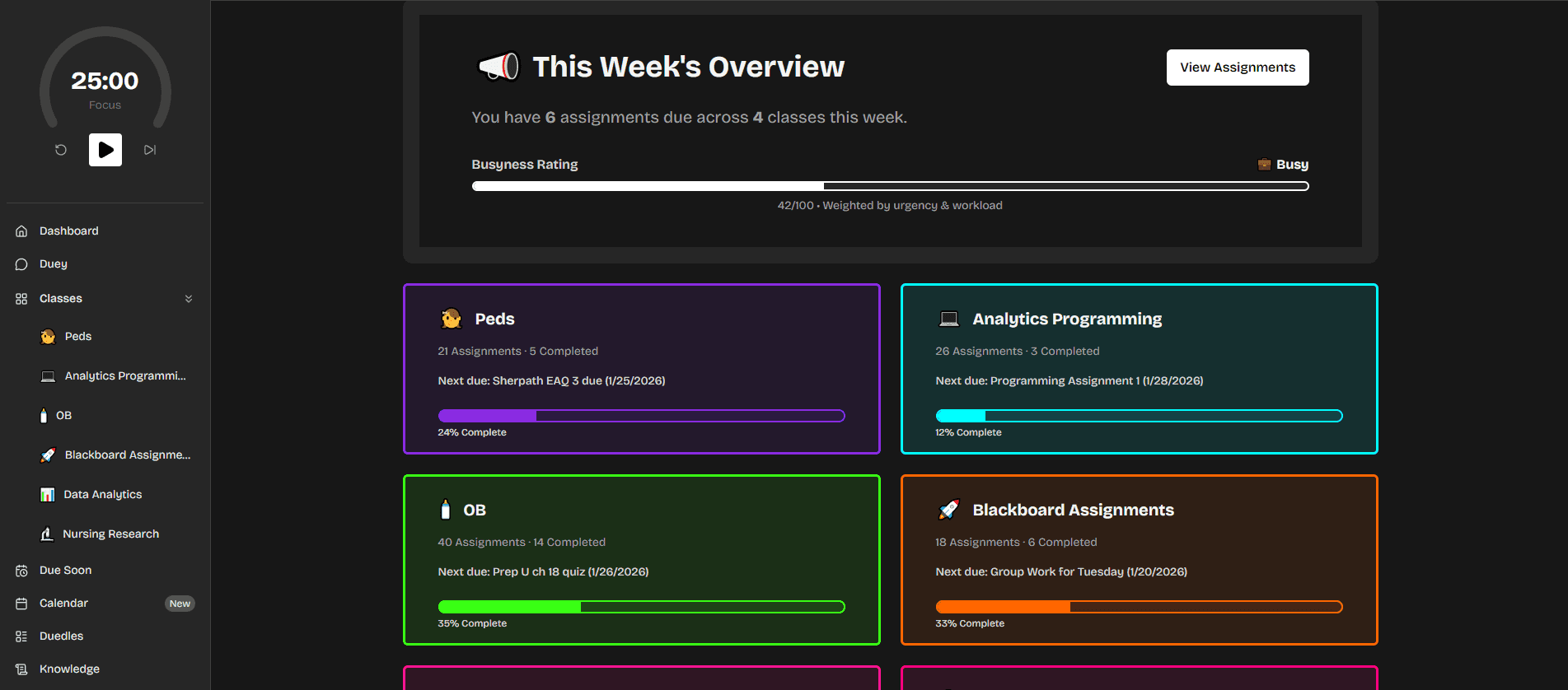
How Due Gooder simplifies task tracking
Due Gooder extracts assignment details with 94% accuracy [9], syncing everything to Google Calendar with color-coding by course. It even offers smart reminders and allows connections to Canvas, Brightspace, and other LMS platforms [10].

When to switch from manual to automated tools
Consider upgrading when you notice:
You're spending too much time maintaining your tracker
Deadlines occasionally slip through the cracks
Managing multiple courses becomes overwhelming
Conclusion
Staying on top of your academic responsibilities requires more than just good intentions. An assignment tracker serves as your personal academic command center, helping you visualize deadlines, prioritize tasks, and maintain consistent progress across all courses. Throughout this guide, you've learned how to transform a blank Google Sheets document into a customized tracking system that fits your specific needs.
Creating your own assignment tracker in Google Sheets certainly offers flexibility and customization options. You can color-code subjects, filter by due dates, and even track your progress with visual indicators. However, this manual approach demands consistent maintenance and discipline. Despite its benefits, manually updating spreadsheets consumes valuable time you could spend actually completing those assignments.
Consequently, many students find themselves at a crossroads between manual tracking and automated solutions. While spreadsheets work well for simple scheduling, they become increasingly cumbersome as your course load grows. If building an assignment tracker every semester feels tedious, there's an easier way. Due Gooder automatically pulls assignments and due dates from your syllabus and LMS into one organized calendar. Try Due Gooder free and see all your assignments in minutes.
Ultimately, the best tracking system is one you'll actually use consistently. Whether you choose a DIY Google Sheets template or switch to an automated tool like Due Gooder, the important thing is establishing a reliable system. Your future self will thank you when finals week approaches and you're confidently tackling assignments instead of frantically searching through syllabi for forgotten deadlines. Take control of your academic journey today, because effective assignment tracking isn't just about organizing tasks, it's about reclaiming your time and reducing unnecessary stress.
FAQs
Q1. How can an assignment tracker improve my academic performance? An assignment tracker can significantly boost your academic performance by helping you manage deadlines, reduce stress, and keep all tasks in one place. Studies show that students who use trackers are 40% less likely to miss deadlines and can achieve up to an 18% improvement in assessment scores.
Q2. What are the essential columns to include in a Google Sheets assignment tracker? The key columns for an effective assignment tracker in Google Sheets include Assignment Name, Due Date, Course/Subject, Status, Priority, and Notes. These elements help you organize and prioritize your tasks efficiently.
Q3. How can I customize my assignment tracker for better visualization? You can enhance your tracker by color-coding subjects or priorities, using filters to sort by due date or status, adding progress bars with formulas, and creating separate sheets for each semester. These customizations make it easier to visualize your workload at a glance.
Q4. What are the limitations of using Google Sheets for assignment tracking? While Google Sheets offers flexibility, it requires constant manual updating and lacks built-in reminders. This can be time-consuming and may still lead to missed deadlines, especially as your course load increases.
Q5. When should I consider switching to an automated assignment tracking tool? Consider upgrading to an automated tool like Due Gooder when you find yourself spending too much time maintaining your tracker, occasionally missing deadlines, or feeling overwhelmed managing multiple courses. Automated tools can save you time and reduce errors in tracking your assignments.
References
[1] - https://teaching-resources.delta.ncsu.edu/increasing-student-success-through-effective-task-management/
[2] - https://www.papergen.ai/blog/why-every-student-needs-an-assignment-tracker
[3] - https://affine.pro/blog/assignment-tracker-insights
[4] - https://affine.pro/blog/assignment-tracker-tricks
[5] - https://writinkstudio.com/create-an-assignment-tracker-on-google-sheets/
[6] - https://blog.airtable.com/track-your-work-with-progress-bars/
[7] - https://proofed.co.uk/writing-tips/assignment-tracker-template-for-students-google-sheets/
[8] - https://hubstaff.com/time-tracking/manual-vs-automated-time-tracking/
[9] - https://huntscreens.com/en/products/duegooder
[10] - https://apps.apple.com/us/app/due-gooder/id6755054558